Hikvision Event Image Handling Enhancement (NVR Devices)
Overview
This release introduces an enhancement to event image handling for Hikvision NVR devices, addressing the limitation where only a single image is provided per event instead of separate Pre, Post, and Current images.
Existing Behavior
- Hikvision NVR devices provide only one image URL per event.
- This single image was being used for all three event snapshots:
- Pre-event
- Current
- Post-event
- As a result, all three images appeared identical.
Enhancement
- A fallback mechanism has already been implemented using RTSP playback to fetch images at specific timestamps.
- This allows the system to generate:
- Pre-event image
- Current image
- Post-event image
Configuration
This behavior can be enabled using a device-level configuration:
Path:
Device Configuration → Additional Properties → CustomAlarmRules
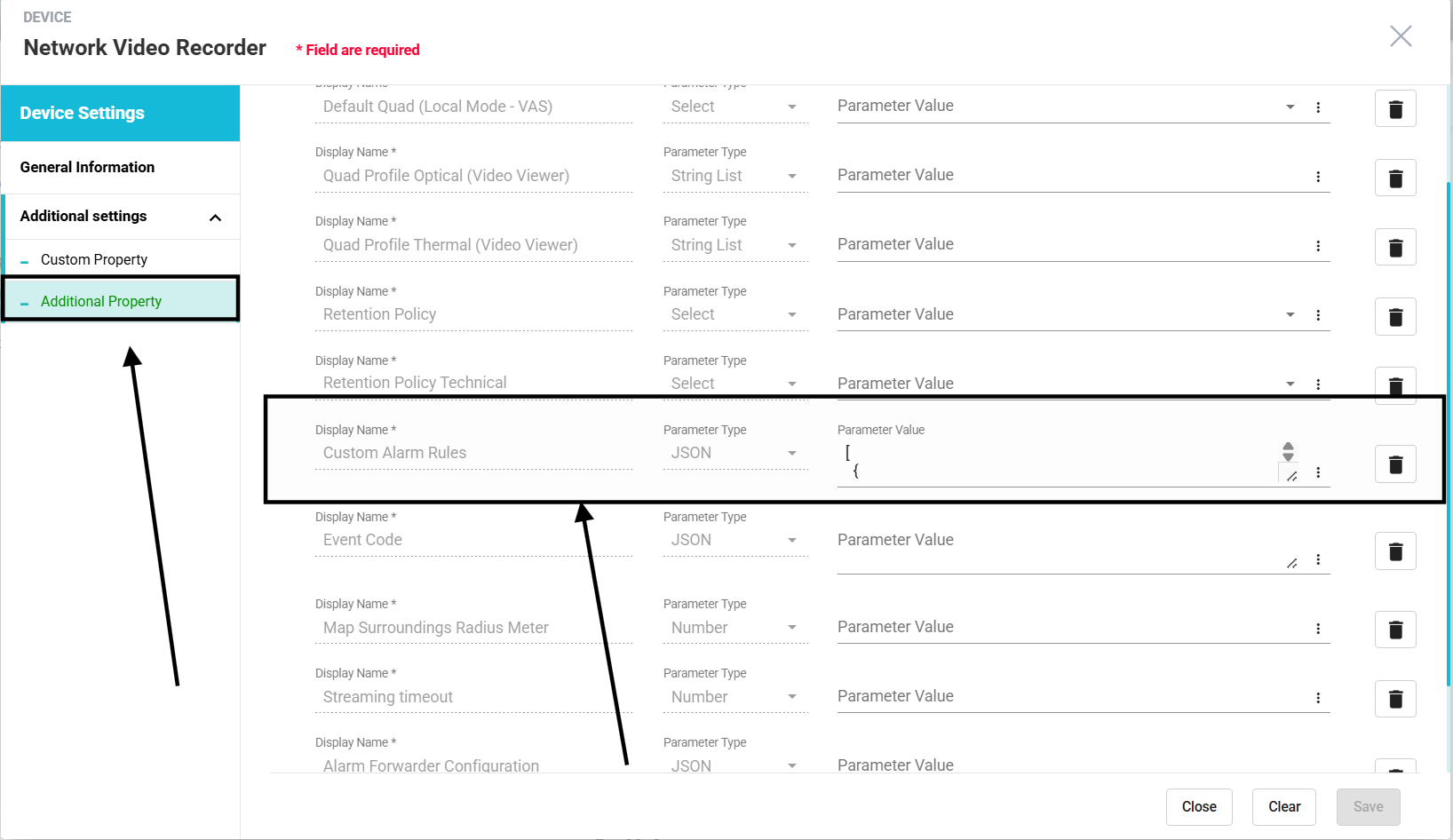
Parameter Value:
[ { "hikvisionAlwaysUseThreeImages": true }]
Paste the value in the custom alarm rules field and save.Behavior After Enabling
- Even if the device provides only a single image, the system will:
- Override the default behavior
- Use the fallback RTSP mechanism
- Generate three distinct event images (Pre, Current, Post)
Scope

Applicable only for Hikvision NVR devices, not applicable for IP Cameras
Deployment Status
 This feature has been enabled for Securiton on three NVR devices as part of initial rollout.

Varinor Glovelier --> Network Video Recorder
Securitas RBW Bulle --> Network Video Recorder
Kantonspital Baden --> NVR
Related Articles
Tower Monitoring Alarm Configuration Guide (Includes Teltonika-IOT, EFOY and Victron Device Configuration)
Introduction When we refer to Tower Monitoring in Genesis, we are describing an integrated ecosystem of multiple IoT subsystems working together to ensure the tower’s operational continuity, energy efficiency, and communication reliability. Each ...GenericRTSP :Genesis Cloud NVR
DeviceType: Genesis Cloud NVR Steps to Add an RTSP Device in Genesis Cloud NVR Login to Genesis Application. Add a New Device: Go to Configuration module. Click on Add Device. Select Device Type: Choose Genesis Cloud NVR. Enter Device Details: Use a ...Geutebrueck Device Event Configuration
1.Geutebrück Event Rule Configuration Create event rules at the device level Open the G‑Set Application. In the left navigation panel, click Events / Behaviour Rules. Add to create a new event rule. Configure the event parameters (conditions and ...Mobile App Guide
BY NXGEN Mobile App GCXONE Mobile App Guide End User Guide 2026 Introduction The GCXONE mobile app gives you secure, on-the-go access to your security monitoring platform. From your smartphone you can view live camera feeds, check site and device ...Release Notes: Audio On/Off Toggle Feature
Overview We are excited to introduce the Audio On/Off Toggle Feature as part of the latest update. This enhancement improves the audio management capabilities across various streaming modules, including Salvo Page, Video Activity Search Multimonitor ...